Quick Start
Get Melliza running in under 5 minutes.
Prerequisites
Before you begin, make sure you have:
- Gemini CLI installed and authenticated. Install Gemini CLI →
- A project you want to work on (or create a new one)
Tip
Run gemini --version in your terminal to confirm Gemini CLI is installed.
Step 1: Install Melliza
Choose your preferred installation method:
code-group
```bash [Homebrew (Recommended)] brew install lvcoi/melliza/melliza
```bash [Install Script]
curl -fsSL https://raw.githubusercontent.com/lvcoi/melliza/main/install.sh | bash
```bash [From Source] git clone https://github.com/lvcoi/melliza.git cd melliza go build -o melliza ./cmd/melliza mv melliza /usr/local/bin/
Step 2: Create Your First PRD
Navigate to your project directory and create a new PRD:
This launches Gemini CLI with a preloaded prompt. Work with Gemini to describe what you want to build—your project goals, user stories, and acceptance criteria. Gemini will help structure your requirements and write the prd.md file.
When you're done, type /exit to leave Gemini CLI. Melliza then parses prd.md and generates prd.json:
prd.md- Human-readable project requirements (written by Gemini)prd.json- Machine-readable user stories for Melliza to execute (generated by Melliza)
Run melliza edit to reopen Gemini CLI and refine your prd.md. Melliza will regenerate prd.json when you /exit.
Step 3: Launch the TUI
Launch Melliza's Terminal User Interface:
On first launch, Melliza prompts you to configure a few settings:
- Post-completion automation — Whether to automatically push branches and create PRs when a PRD completes (recommended: Yes for both)
- Worktree setup command — A command to run in new worktrees (e.g.,
npm install). You can let Gemini detect it automatically, enter it manually, or skip
These settings are saved to .melliza/config.yaml and can be changed anytime via the Settings TUI (press ,).
Step 4: Start the Loop
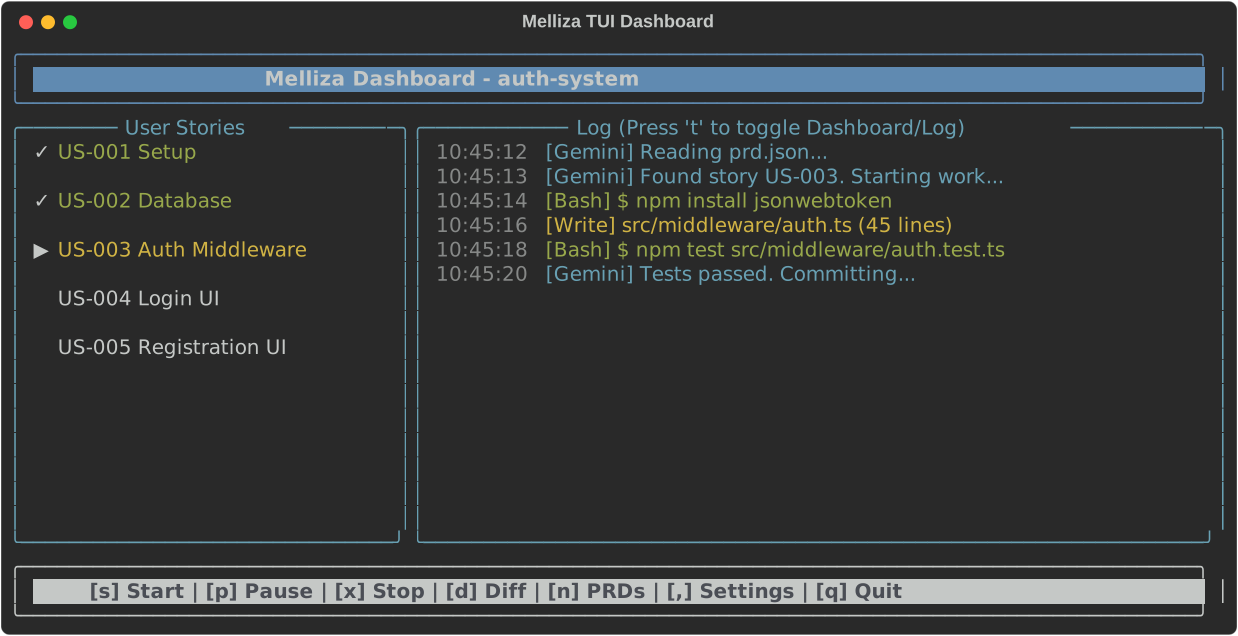
Press s to start the Ralph Loop. Melliza will offer to create a worktree for isolated development, then begin working through your stories automatically.
The TUI shows:
- Tab Bar — All your PRDs with status indicators
- Stories List — User stories with completion status
- Story Details — Current story's description and acceptance criteria
- Live Activity — Real-time status updates from Gemini
- Diff View — Press
dto see the commit diff for the selected story
Keyboard Controls
| Key | Action |
|---|---|
s |
Start the loop (when Ready, Paused, Stopped, or Error) |
p |
Pause the loop (finishes current iteration) |
x |
Stop the loop immediately |
t |
Toggle between Dashboard and Log views |
d |
Diff view — show the selected story's commit diff |
n |
Open PRD picker to create or switch PRDs |
l |
Open PRD picker in selection mode |
e |
Edit current PRD via Gemini CLI |
1-9 |
Quick switch to PRD tabs 1-9 |
j/↓ |
Navigate down (stories or scroll log/diff) |
k/↑ |
Navigate up (stories or scroll log/diff) |
PgDn / Ctrl+D |
Page down (log/diff) |
PgUp / Ctrl+U |
Page up (log/diff) |
+/- |
Adjust max iterations |
m |
Merge completed branch (in picker) |
c |
Clean worktree (in picker) |
, |
Open Settings |
? |
Show help overlay |
q |
Quit Melliza |
Info
Once started with s, Melliza runs autonomously. You can watch the progress or walk away—it will complete your PRD while you're gone.
What's Next?
Now that you've run your first Melliza loop, explore these resources:
- Installation Guide - Detailed installation options for all platforms
- How Melliza Works - Understand the autonomous loop
- The Ralph Loop - Deep dive into the execution model
- PRD Format - Write effective PRDs
- CLI Reference - All available commands and options